Trsuted By
Legal and Accessibility
Golearnam is an educational platform. The courses and materials provided are for informational and learning purposes only. We do not guarantee specific career outcomes or job placements.
Trsuted By






Golearnam is an educational platform. The courses and materials provided are for informational and learning purposes only. We do not guarantee specific career outcomes or job placements.
A complete guide to applying as a tutor on Golearnam, from checking your eligibility to submitting your application.
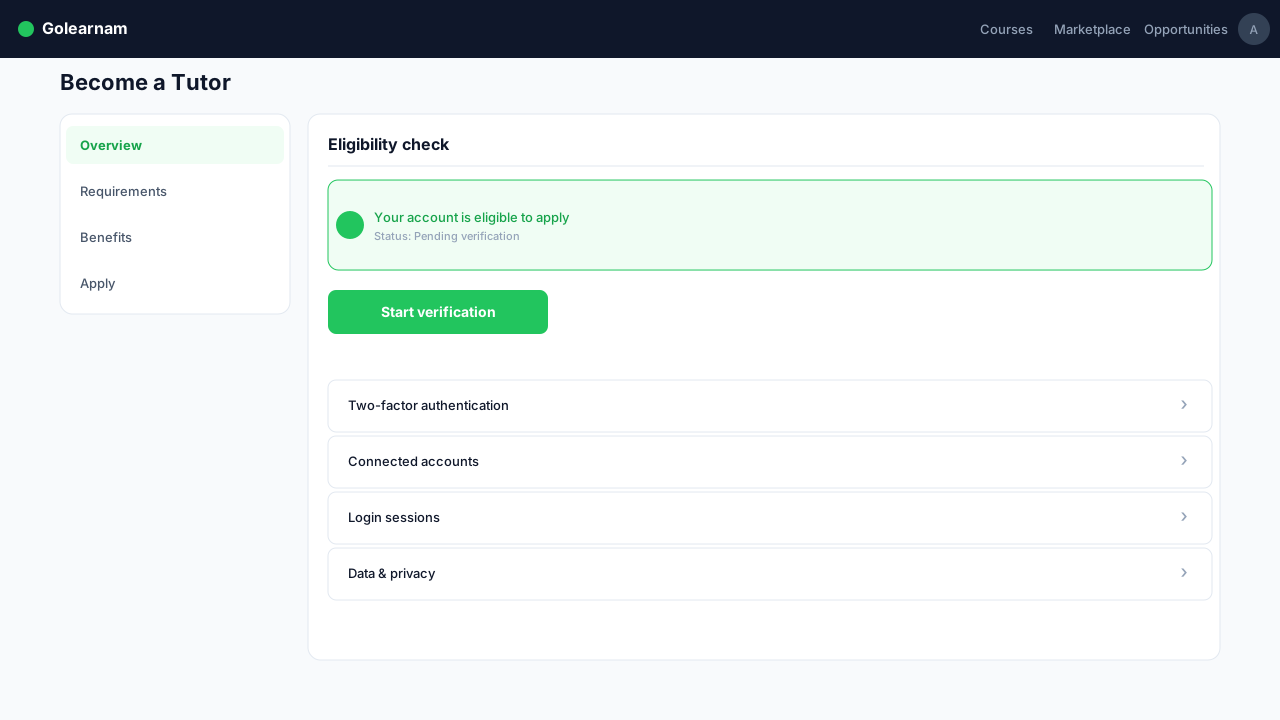
Visit the 'Become a Tutor' page from the navigation menu or the Opportunities section. The system automatically checks your eligibility based on your account status. You must be logged in with a complete profile to apply. If you're not logged in, you'll see a prompt to sign in first. The eligibility check verifies that your profile is complete and that you meet the basic requirements.
Tip
Make sure your profile is fully filled out before starting, as incomplete profiles will be flagged as ineligible.
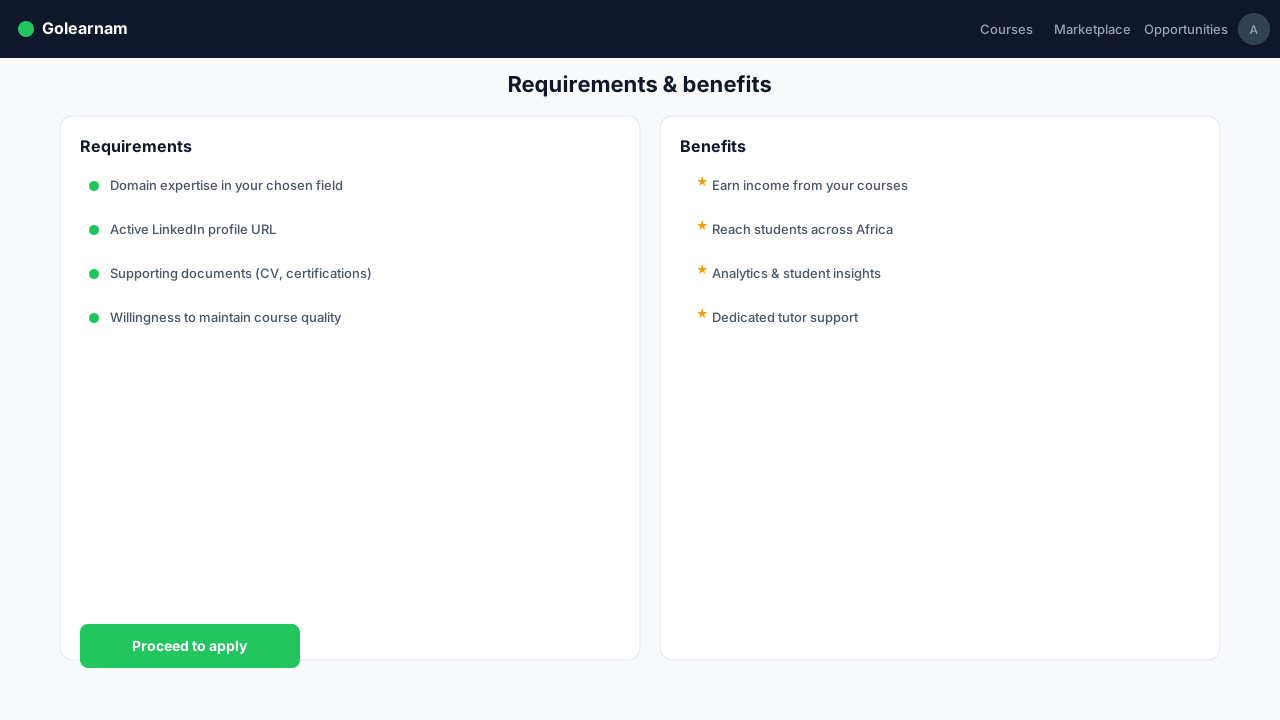
Before applying, review the requirements section to understand what's expected of tutors. You'll need expertise in your chosen field, a professional LinkedIn profile, and supporting documents. The benefits section outlines what you'll gain as a tutor, including earning income from your courses, reaching students globally, and accessing comprehensive teaching tools and analytics.
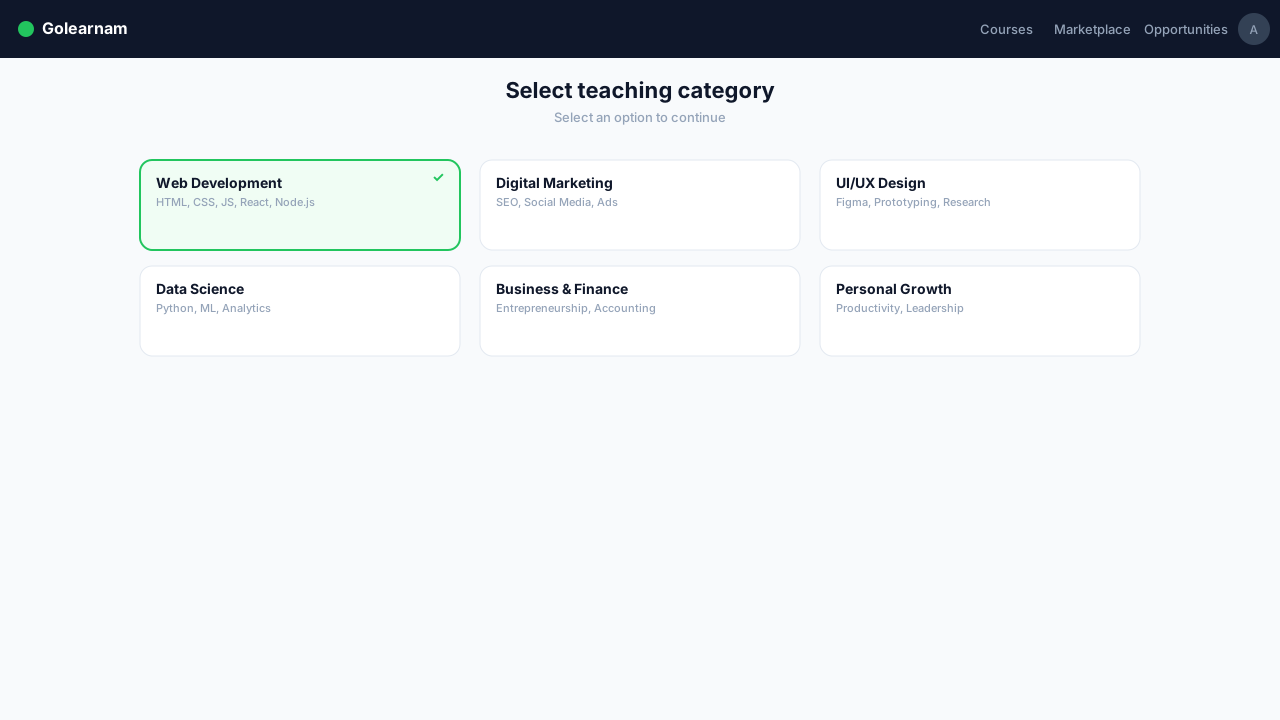
Once you click 'Proceed to Apply', you'll enter the 4-step application form. Step 1 asks you to select which category you want to teach in (e.g., Web Development, Digital Marketing, UI/UX Design). You can only select one category per application. If you want to teach in multiple categories, you'll need to submit separate applications for each.
Tip
Choose the category that best matches your strongest expertise. You can always apply for additional categories later.
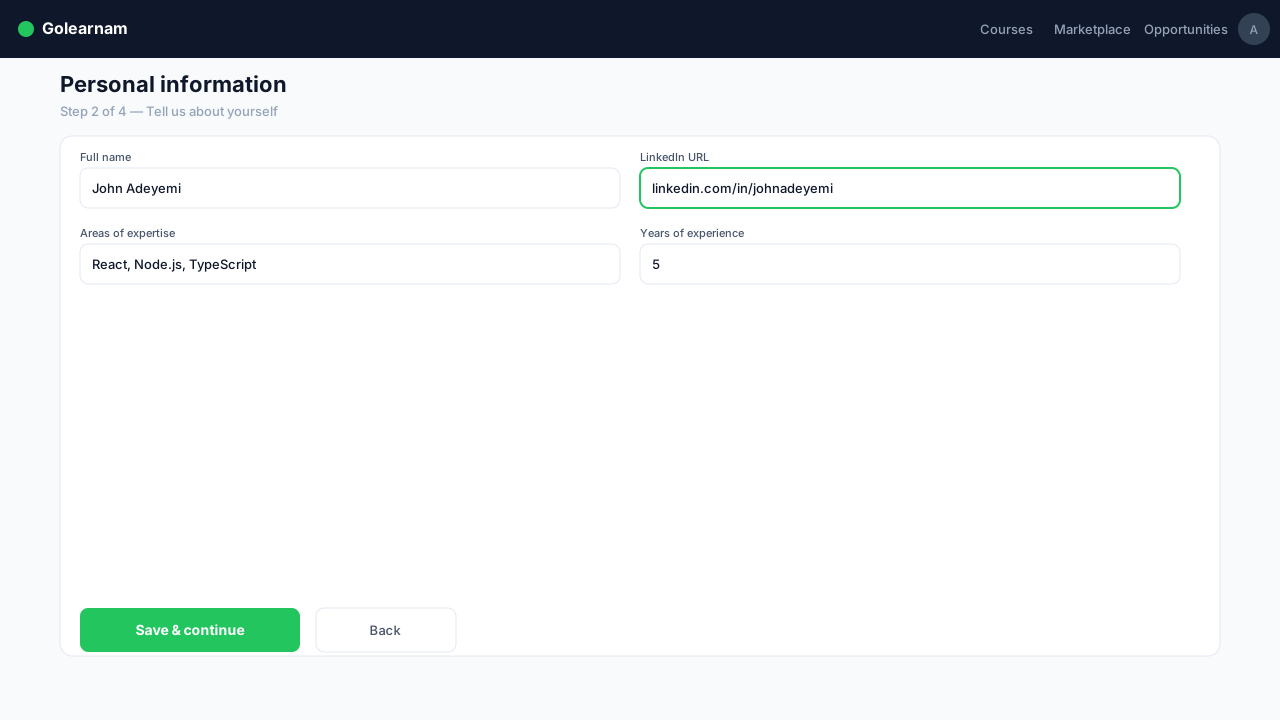
In Step 2, provide your professional details. Write a detailed bio (minimum 50 characters) explaining your background and teaching experience. Add your areas of expertise, your LinkedIn profile URL (required), and optionally a social media link. This information helps the review team assess your qualifications and will be visible on your tutor profile.
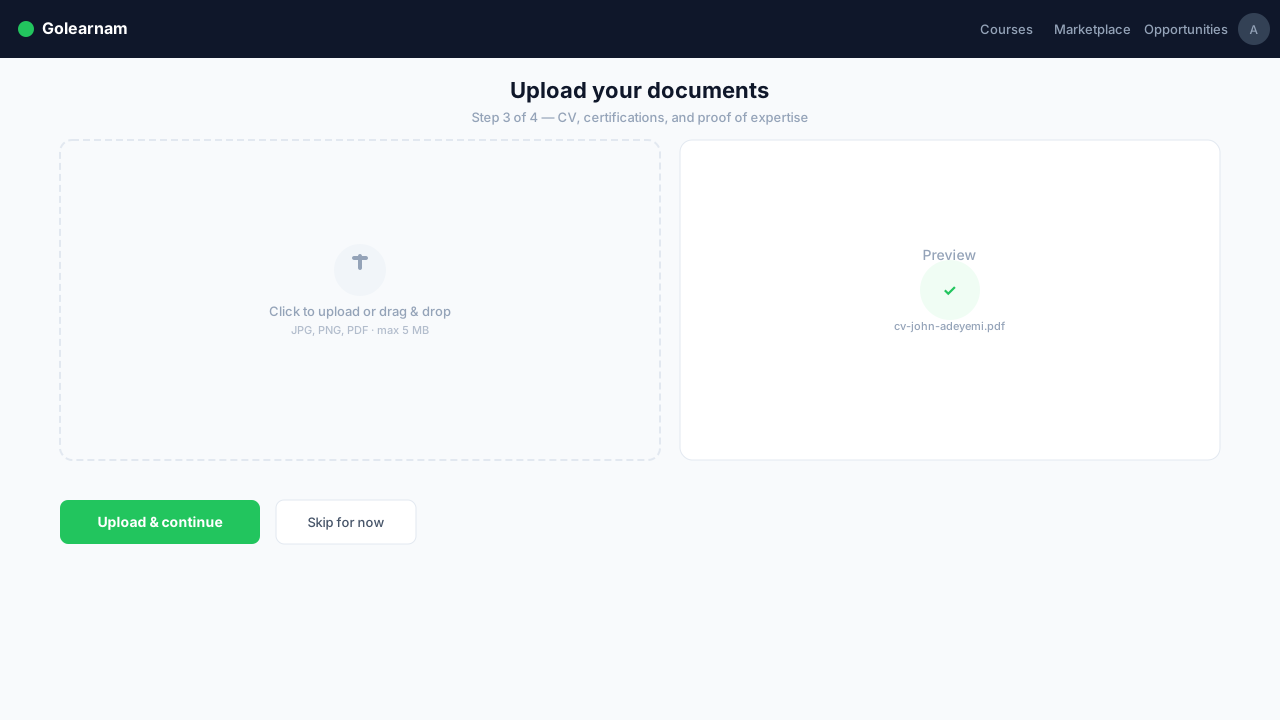
Step 3 requires you to upload supporting documents that verify your qualifications. This typically includes your CV or resume, relevant certifications, and proof of expertise in your chosen category. Upload each document and confirm it before proceeding. All documents must be confirmed before you can move to the final step.
Tip
Upload clear, legible documents in PDF format. Make sure your CV highlights experience relevant to the category you're applying for.
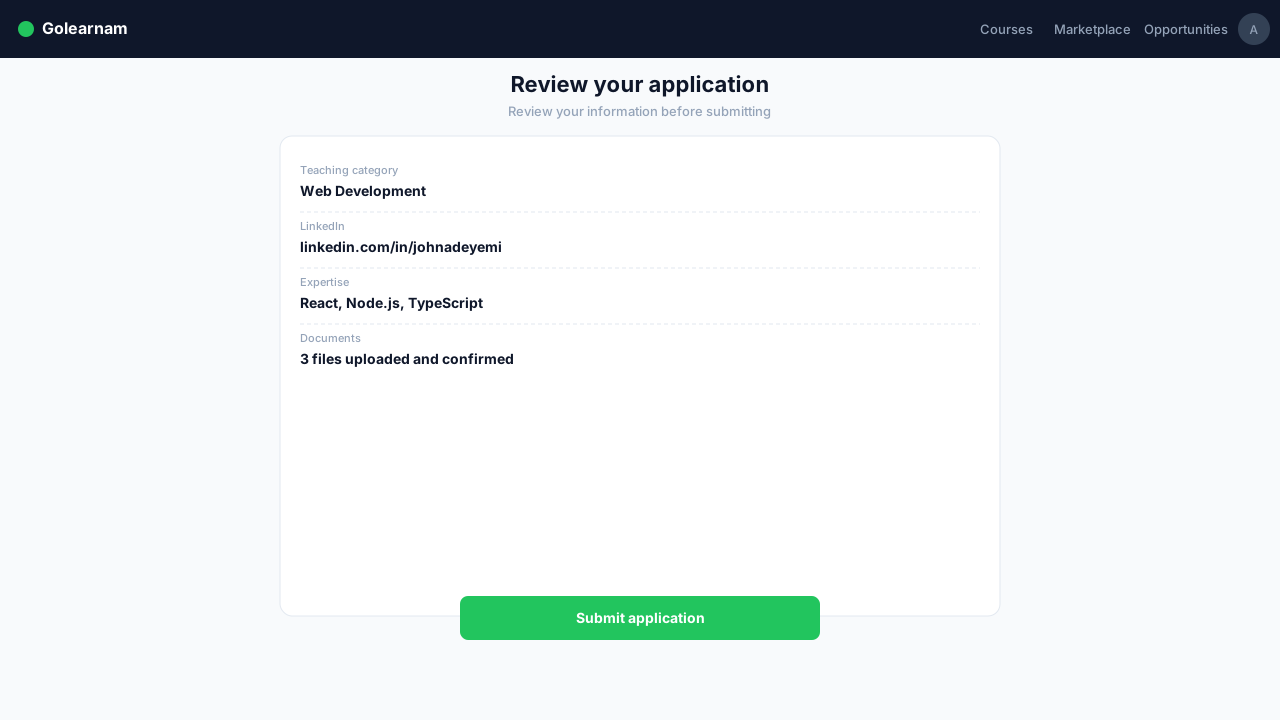
The final step shows a summary of your entire application, your selected category, personal information, and uploaded documents. Review everything carefully for accuracy. Once you're satisfied, click 'Submit Application'. You'll be redirected to a success page with your application ID. The team will review your application and notify you of the decision via email. You can track your application status from the Student Dashboard under 'Applications'.