Trsuted By
Legal and Accessibility
Golearnam is an educational platform. The courses and materials provided are for informational and learning purposes only. We do not guarantee specific career outcomes or job placements.
Trsuted By



Golearnam is an educational platform. The courses and materials provided are for informational and learning purposes only. We do not guarantee specific career outcomes or job placements.
A walkthrough of the course player, from accessing your enrolled course to watching lessons, reading documents, and tracking your progress.
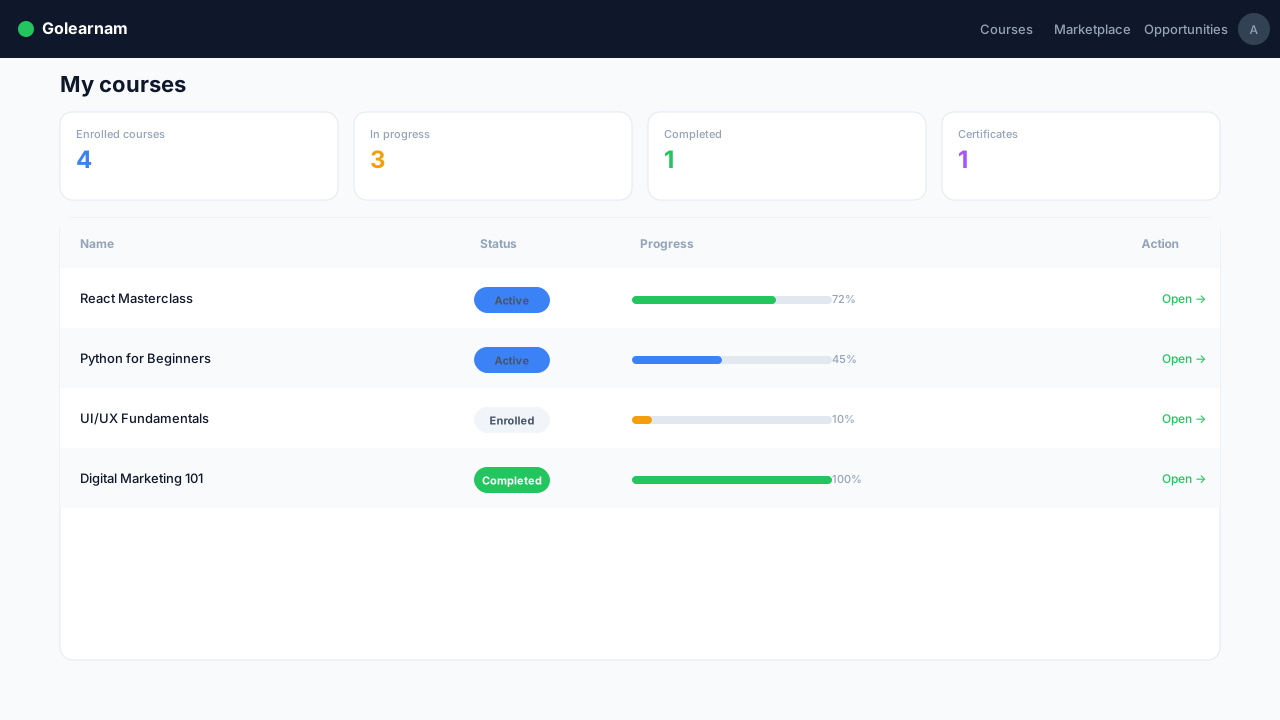
After enrolling, go to your Student Dashboard and click 'My Courses' in the sidebar. You'll see all your enrolled courses with progress indicators. Click on any course to open the course player. You'll be taken directly to your first incomplete lesson so you can pick up right where you left off.
Tip
The course player automatically opens the next lesson you haven't completed yet, so you never lose your place.
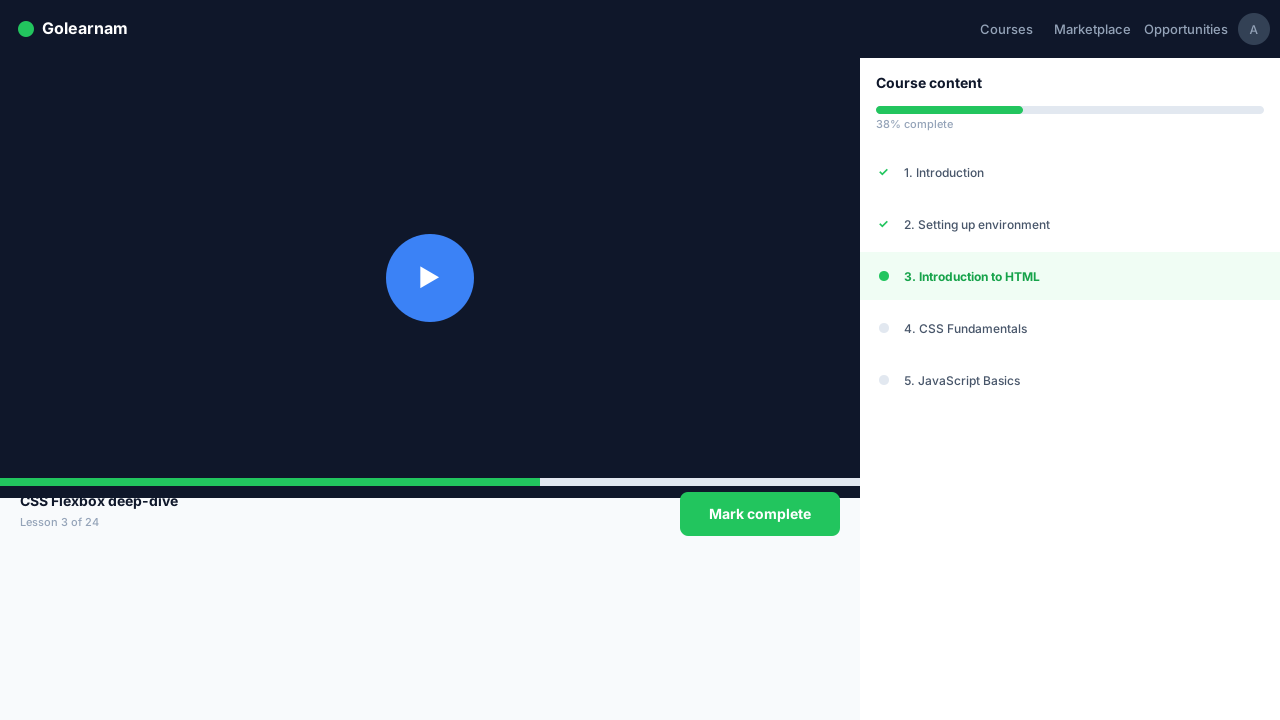
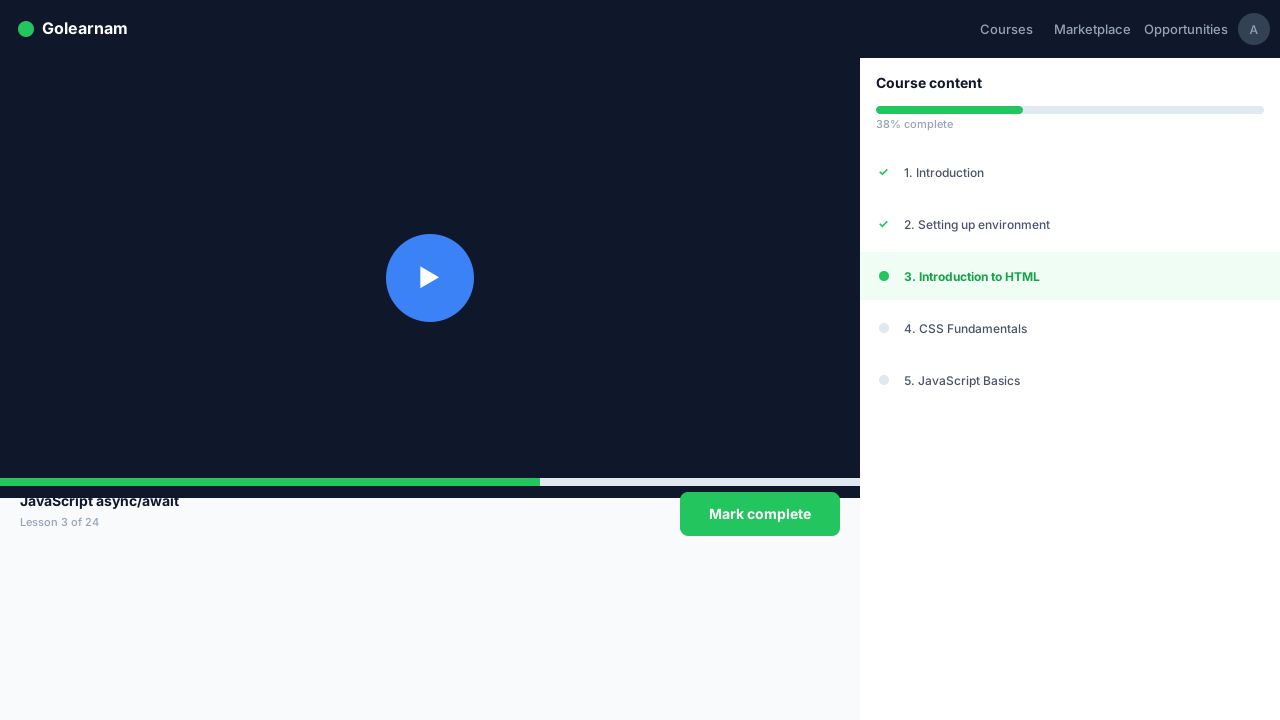
The course player has two main areas: the sidebar on the left shows all installments and their lessons, and the main content area on the right displays the current lesson. You can toggle the sidebar open or closed using the sidebar button. On mobile, tap 'Course Content' to open the sidebar as an overlay. Lessons are organized by installment. Locked installments appear greyed out until you purchase them.
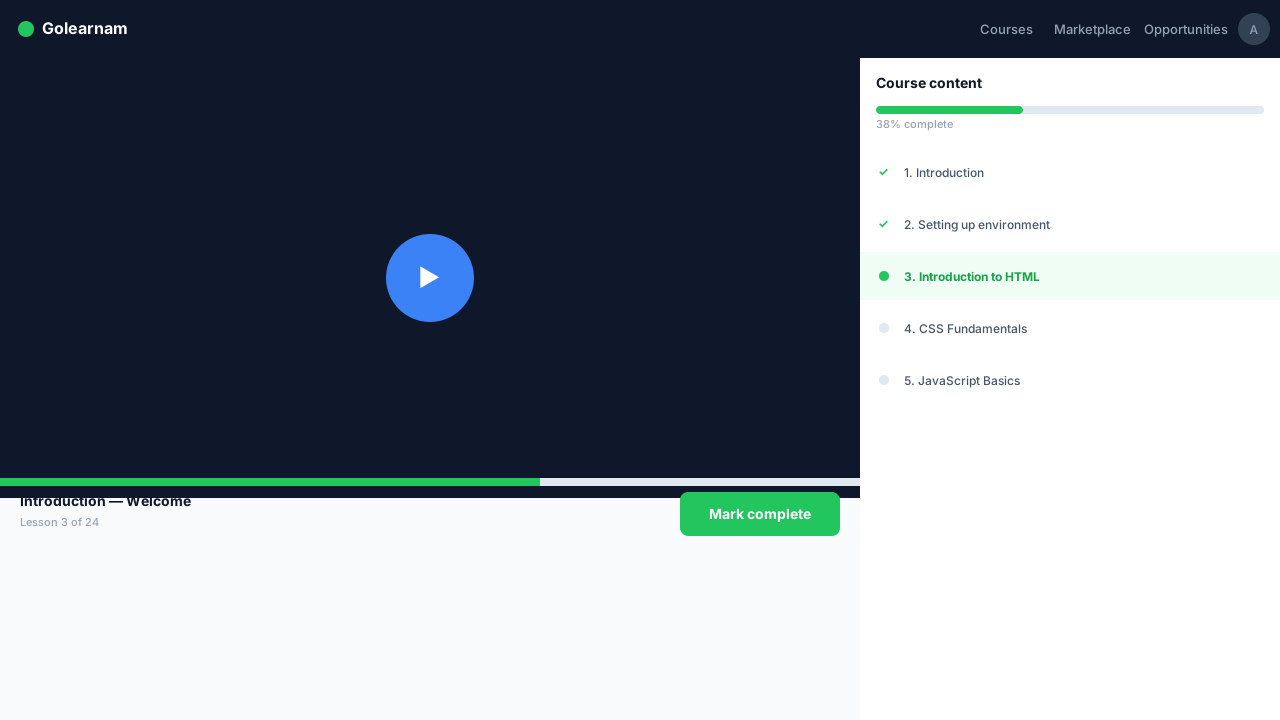
For video lessons, the player displays the video at the top of the content area. The video tracks your watching progress automatically. Below the video, you'll see the lesson title, content type badge (Video), duration, and a description of the lesson. The installment progress shows how many lessons you've completed in the current section.
Tip
Videos remember where you stopped watching, so you can resume from the exact point you left off.
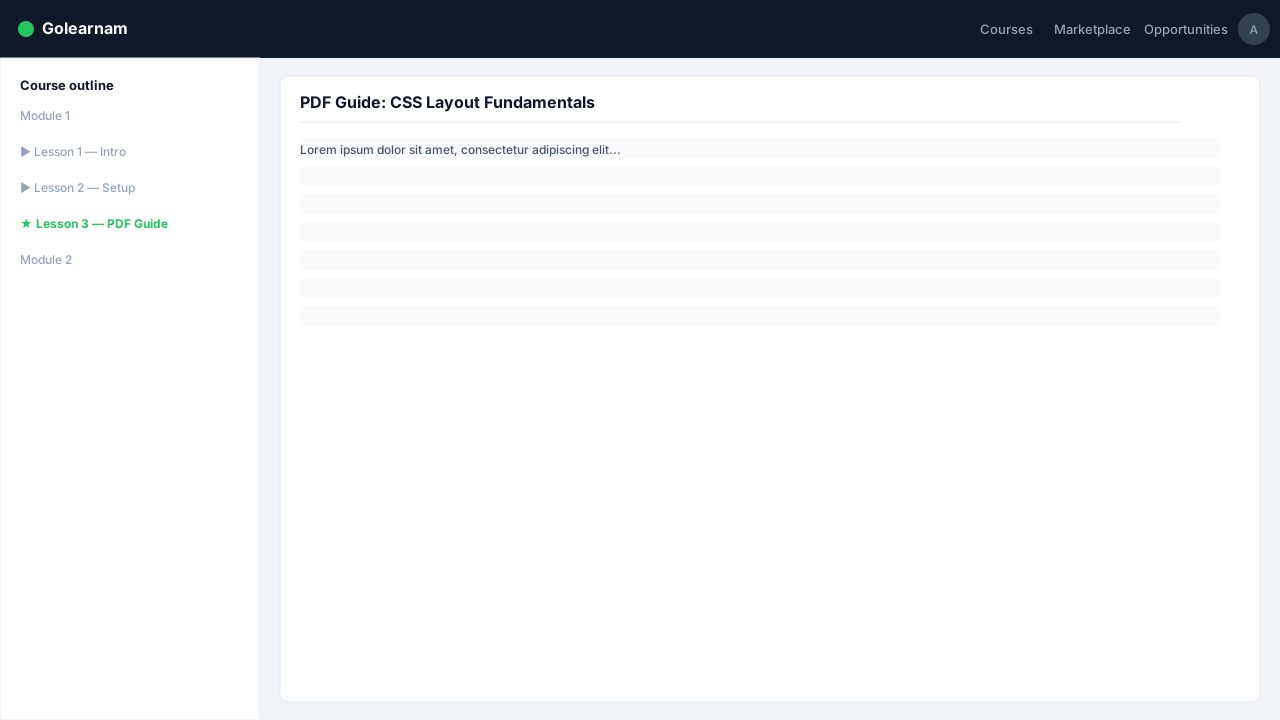
Some lessons contain PDF documents or external links instead of videos. PDF lessons open in an embedded document viewer right inside the course player, no need to download them. Link-based lessons open the referenced resource. Both content types track your reading progress just like video lessons do.
After finishing a lesson, click the 'Mark Complete' button in the navigation bar between the content and lesson details. A green checkmark will appear next to completed lessons in the sidebar. If the lesson has a quiz attached, you'll need to take and pass the quiz (70% or higher) before you can move to the next lesson. The 'Take Quiz' button will appear automatically.
Tip
If a lesson has a quiz, the system will automatically redirect you to the quiz after marking the lesson complete.
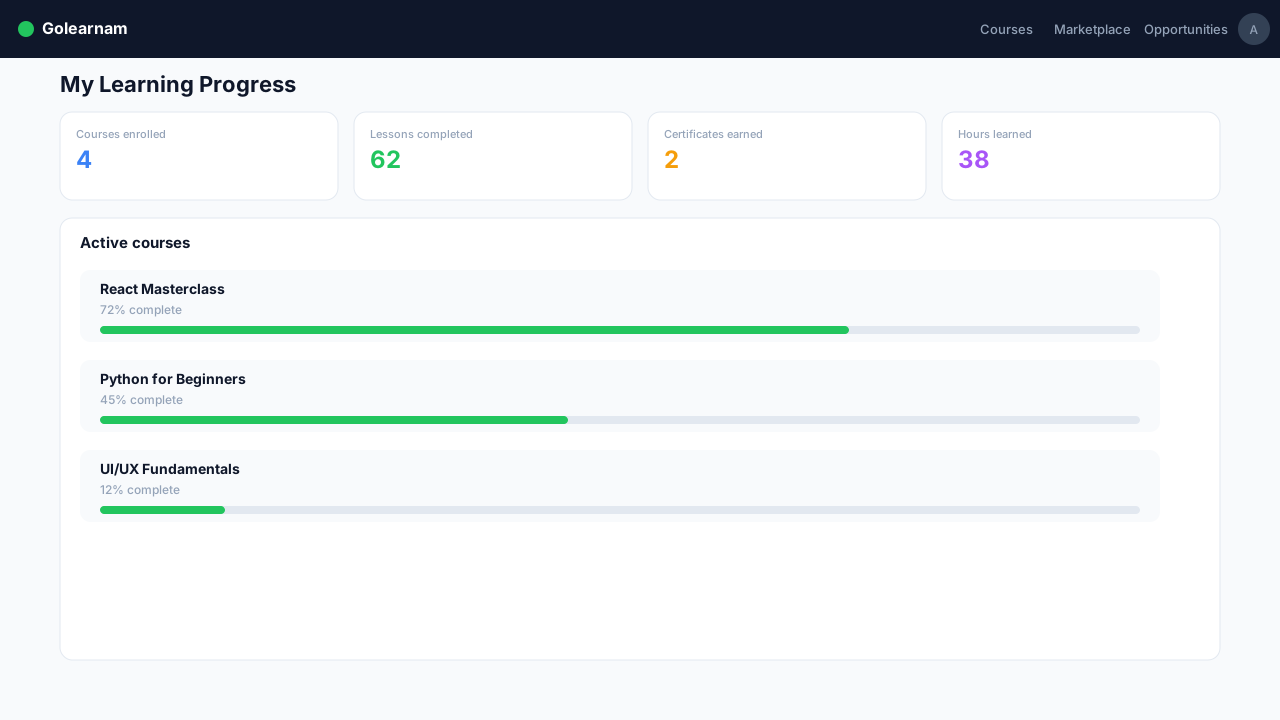
The course header shows your overall progress percentage across all installments. Each installment in the sidebar displays how many lessons are completed out of the total. At 60% completion, the system will prompt you to leave a course review to help other students. Once you complete all lessons and quizzes, you'll earn your certificate of completion.