GoLearnam
Log inRegister for FREE
Browse CoursesLive ClassesBootcamps
ArticlesPrivacy PolicyTerms of ServiceGetting StartedAll Guides
Our StoryMission & VisionContact Us
Create WebinarsBecome a TutorSell ProductsAffiliate Program
Log inRegister for FREE
Back to Guides

All Guides

Getting StartedHow to EnrollPayment GuideLearning a CourseQuizzes & AssessmentsEarning CertificatesBecoming a TutorCreating a Course

On This Page

1. When Quizzes Appear2. Starting a Quiz3. Answering Questions4. Submitting Your Quiz5. Viewing Your Results6. After the Quiz

Quizzes & Assessments

Everything you need to know about taking quizzes — from how they appear to answering questions, viewing results, and passing requirements.

4 min read

On This Page

  1. 1. When Quizzes Appear
  2. 2. Starting a Quiz
  3. 3. Answering Questions
  4. 4. Submitting Your Quiz
  5. 5. Viewing Your Results
  6. 6. After the Quiz
1

When Quizzes Appear

Not every lesson has a quiz, but when one does, you'll see a 'Has Quiz' badge on the lesson. After you mark the lesson as complete, a 'Take Quiz' button appears in the navigation bar. You must complete and pass the quiz before moving to the next lesson. If you try to skip ahead, you'll be redirected back to the quiz.
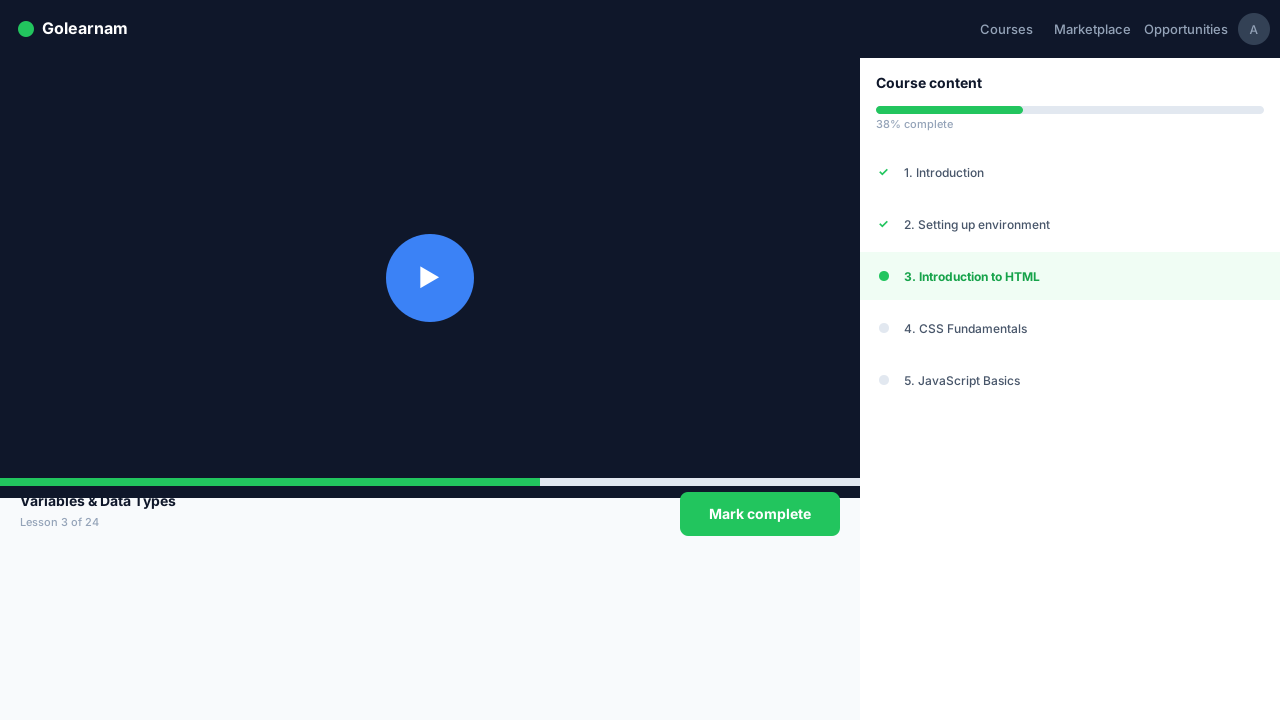
Lesson navigation bar showing Take Quiz button and Has Quiz badge

Tip

Review the lesson content thoroughly before starting the quiz — there's no time limit, so take your time to prepare.

2

Starting a Quiz

When you click 'Take Quiz', the quiz interface replaces the lesson view. You'll see the quiz title, description, which lesson it belongs to, and a progress bar tracking your position. The header displays which question you're on (e.g., 'Question 1 of 10') and how many you've answered so far.
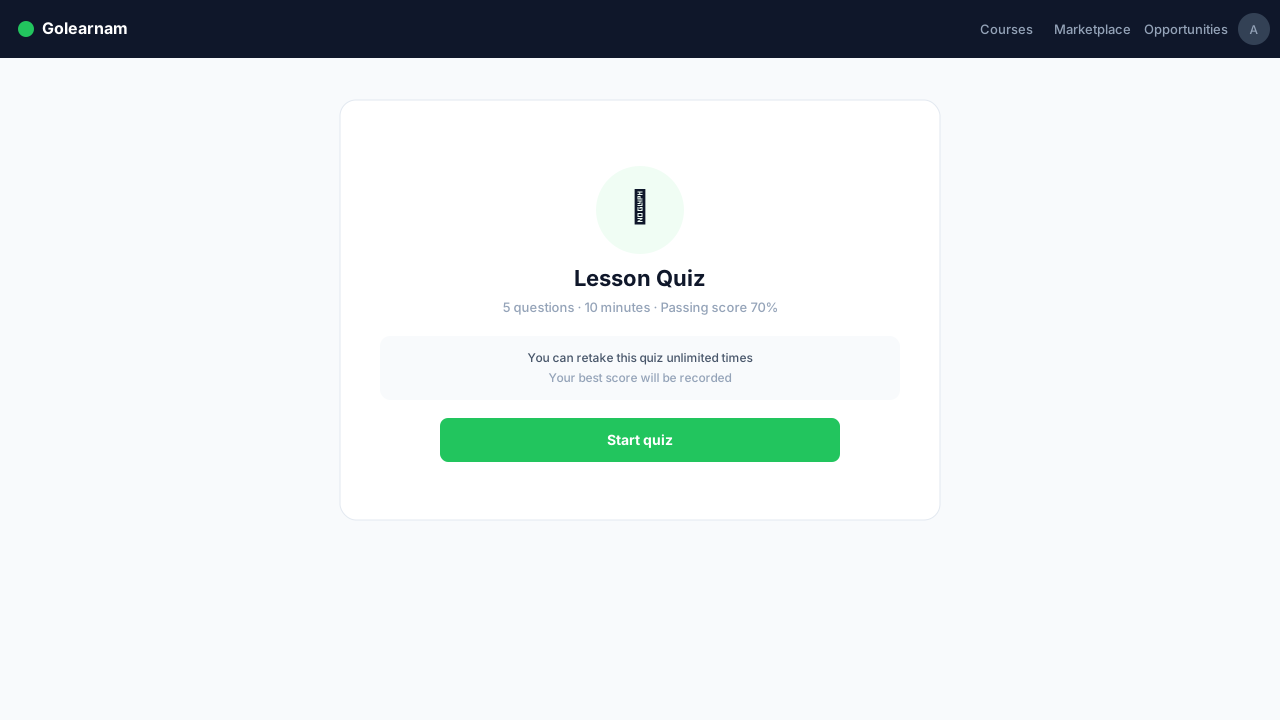
Quiz interface showing title, description, and progress bar

3

Answering Questions

Each question presents multiple choice options — click on your answer to select it. Use the 'Next' and 'Previous' buttons to navigate between questions. A question navigator grid at the bottom shows all questions as numbered boxes: filled boxes mean answered, empty boxes mean unanswered, and the current question is highlighted. Click any box to jump directly to that question.
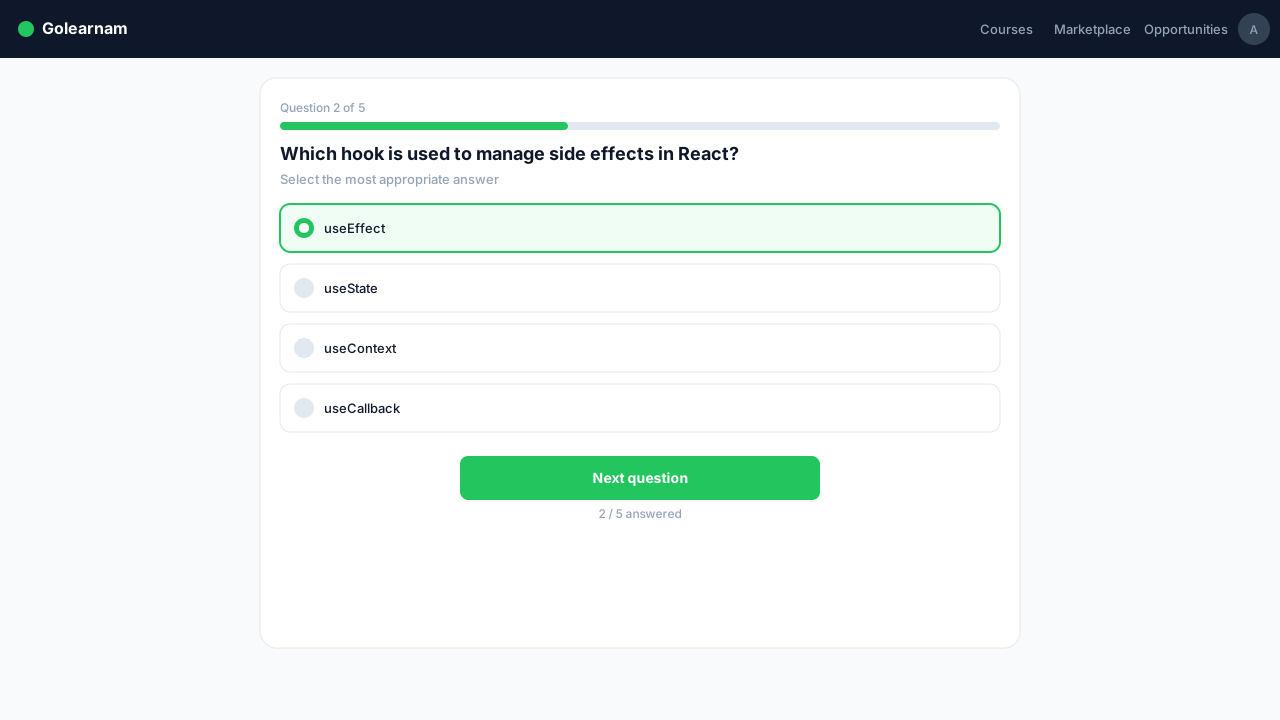
Quiz question with multiple choice options and question navigator grid

Tip

You can go back and change your answers at any time before submitting. Use the question navigator to quickly spot unanswered questions.

4

Submitting Your Quiz

The 'Submit Quiz' button appears on the last question. You must answer all questions before submitting — if any are unanswered, you'll see an error telling you how many remain. Once you submit, your answers are sent for grading and results appear immediately. You cannot change answers after submitting.
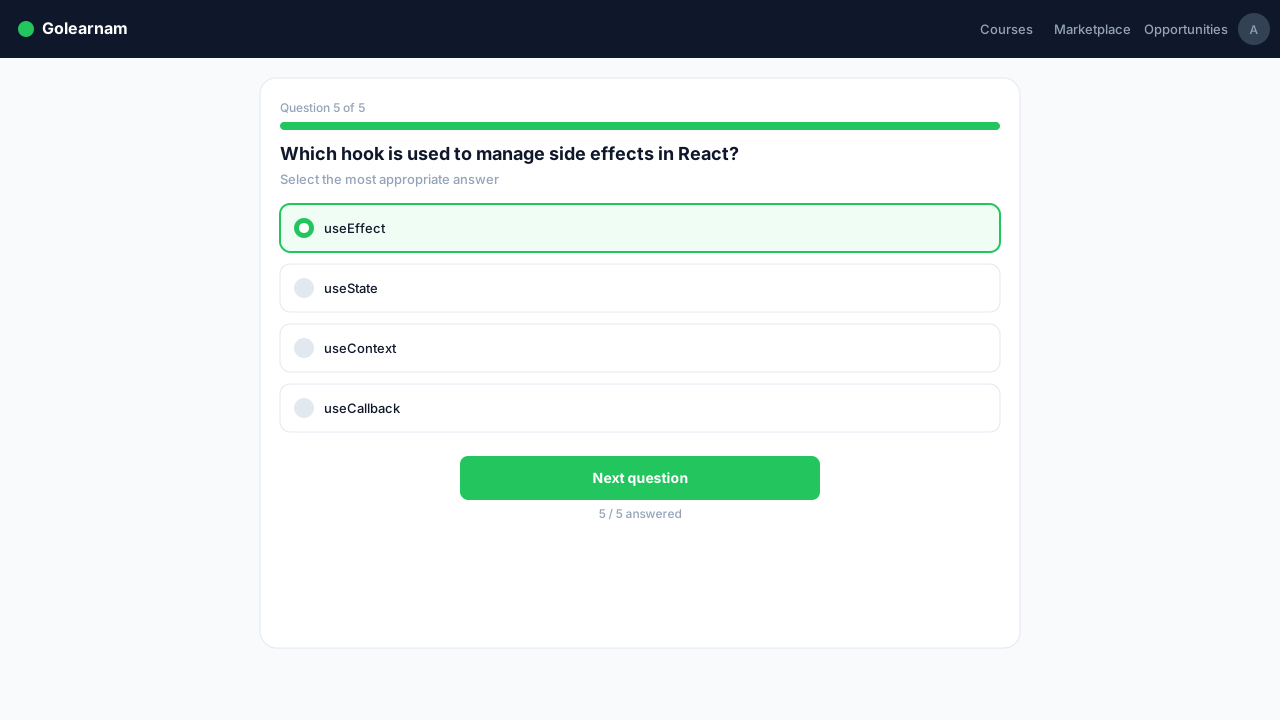
Last quiz question showing Submit Quiz button

5

Viewing Your Results

After submitting, you'll see your score (e.g., 8/10), percentage, and whether you passed or failed. The pass threshold is 70%. You can review each question to see your answer, the correct answer, and whether you got it right or wrong. Correct answers are highlighted in green and incorrect ones in red.
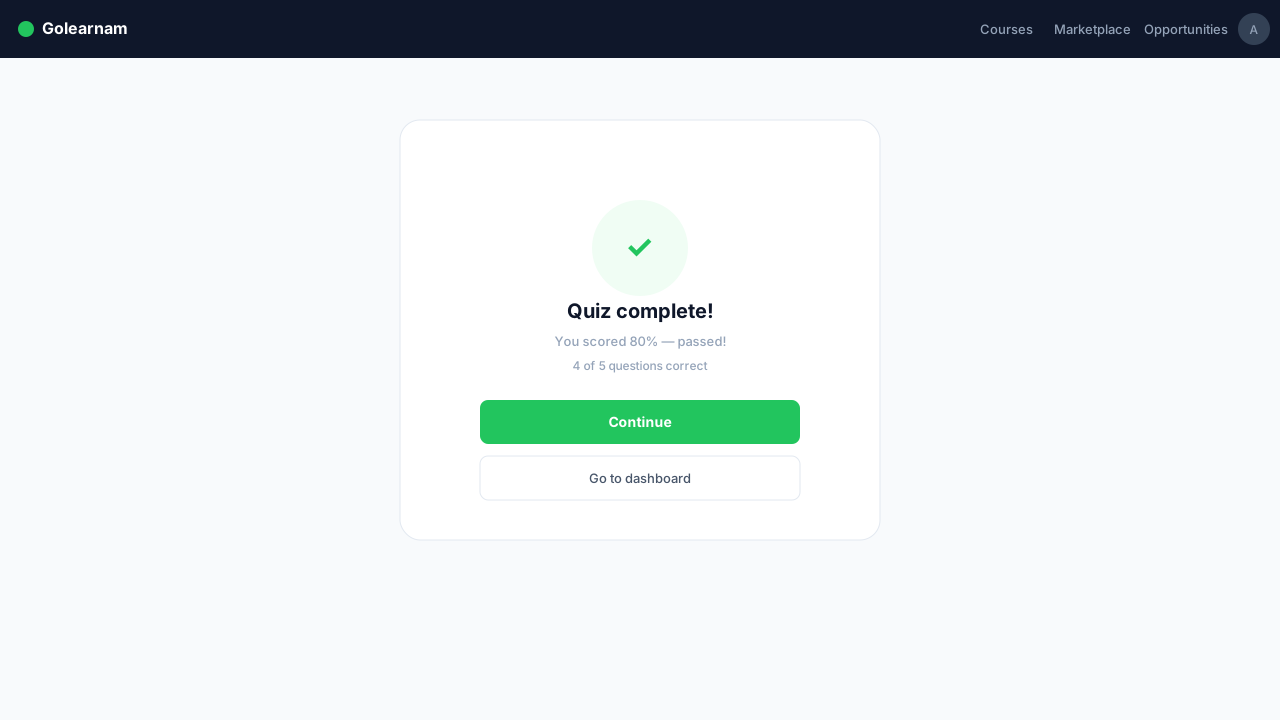
Quiz results page showing score, percentage, and individual question review

Tip

Even if you pass, reviewing incorrect answers helps reinforce your understanding of the material.

6

After the Quiz

If you passed (70% or higher), you'll see a success message and can continue to the next lesson. If you visit the quiz again later, you'll see your previous score and can review your results. The quiz badge in the lesson sidebar changes to 'Quiz Passed' once you've succeeded. Completing all quizzes is required to earn your course certificate.
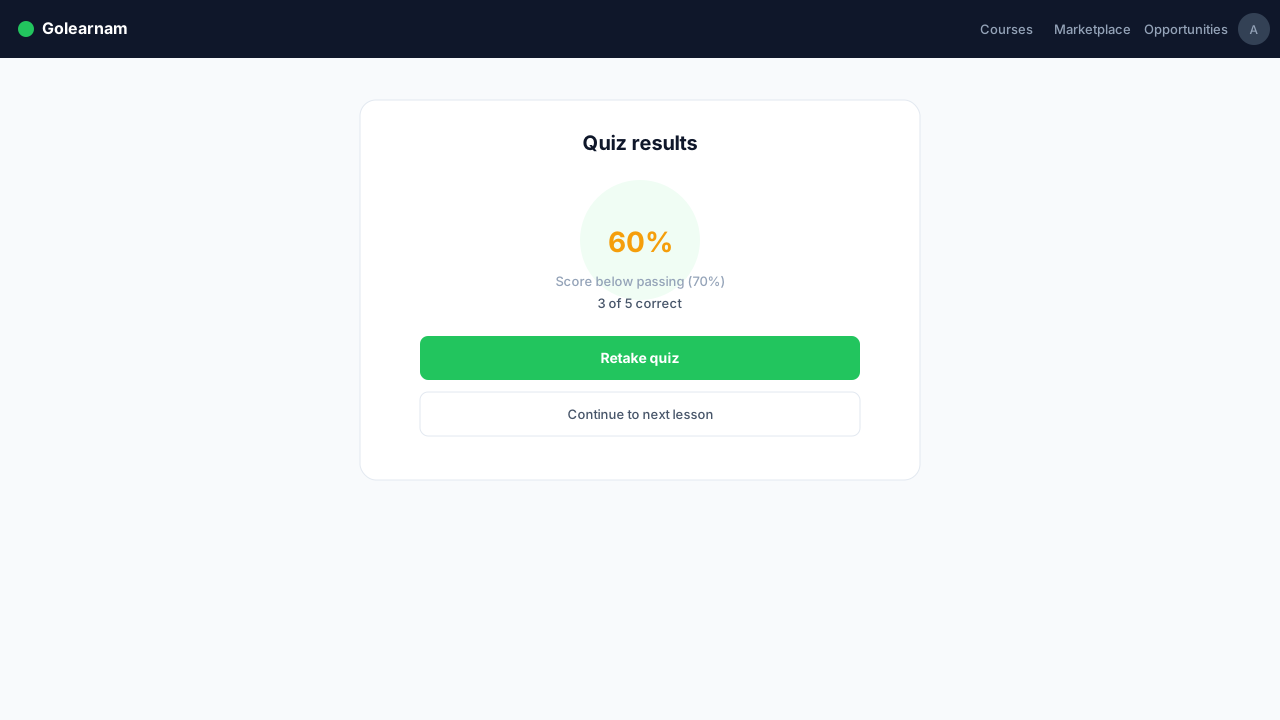
Previous attempt view showing score and continue button

Previous Guide

Learning a Course

Next Guide

Earning Certificates

Join thousands of professionals onGoLearnamteaching and or growing their careers.Start Learning for FREE

Quick Links

  • Home
  • Courses
  • About Us
  • Contact
  • Articles

Marketplace

  • Browse GoStore
  • Sell Your Products
  • Become a Tutor
  • Affiliate Program
  • Host a Webinar

Discover

  • Become a Tutor
  • Browse Marketplace
  • Course Categories
  • Affiliate Program
  • Get the app

Legal and Accessaiility

  • Terms of Service
  • Compliance
  • Privacy
  • Disclaimer
  • Refund Policy
  • Sitemap

GoLearnam is an educational platform. The courses and materials provided are for informational and learning purposes only. We do not guarantee specific career outcomes or job placements.

GoLearnam

© 2026 GoLearnam Inc. All rights reserved.

GoLearnam
Log inRegister for FREE
Browse CoursesLive ClassesBootcamps
ArticlesPrivacy PolicyTerms of ServiceGetting StartedAll Guides
Our StoryMission & VisionContact Us
Create WebinarsBecome a TutorSell ProductsAffiliate Program
Log inRegister for FREE
Back to Guides

All Guides

Getting StartedHow to EnrollPayment GuideLearning a CourseQuizzes & AssessmentsEarning CertificatesBecoming a TutorCreating a Course

On This Page

1. When Quizzes Appear2. Starting a Quiz3. Answering Questions4. Submitting Your Quiz5. Viewing Your Results6. After the Quiz

Quizzes & Assessments

Everything you need to know about taking quizzes — from how they appear to answering questions, viewing results, and passing requirements.

4 min read

On This Page

  1. 1. When Quizzes Appear
  2. 2. Starting a Quiz
  3. 3. Answering Questions
  4. 4. Submitting Your Quiz
  5. 5. Viewing Your Results
  6. 6. After the Quiz
1

When Quizzes Appear

Not every lesson has a quiz, but when one does, you'll see a 'Has Quiz' badge on the lesson. After you mark the lesson as complete, a 'Take Quiz' button appears in the navigation bar. You must complete and pass the quiz before moving to the next lesson. If you try to skip ahead, you'll be redirected back to the quiz.

Lesson navigation bar showing Take Quiz button and Has Quiz badge

Tip

Review the lesson content thoroughly before starting the quiz — there's no time limit, so take your time to prepare.

2

Starting a Quiz

When you click 'Take Quiz', the quiz interface replaces the lesson view. You'll see the quiz title, description, which lesson it belongs to, and a progress bar tracking your position. The header displays which question you're on (e.g., 'Question 1 of 10') and how many you've answered so far.

Quiz interface showing title, description, and progress bar

3

Answering Questions

Each question presents multiple choice options — click on your answer to select it. Use the 'Next' and 'Previous' buttons to navigate between questions. A question navigator grid at the bottom shows all questions as numbered boxes: filled boxes mean answered, empty boxes mean unanswered, and the current question is highlighted. Click any box to jump directly to that question.

Quiz question with multiple choice options and question navigator grid

Tip

You can go back and change your answers at any time before submitting. Use the question navigator to quickly spot unanswered questions.

4

Submitting Your Quiz

The 'Submit Quiz' button appears on the last question. You must answer all questions before submitting — if any are unanswered, you'll see an error telling you how many remain. Once you submit, your answers are sent for grading and results appear immediately. You cannot change answers after submitting.

Last quiz question showing Submit Quiz button

5

Viewing Your Results

After submitting, you'll see your score (e.g., 8/10), percentage, and whether you passed or failed. The pass threshold is 70%. You can review each question to see your answer, the correct answer, and whether you got it right or wrong. Correct answers are highlighted in green and incorrect ones in red.

Quiz results page showing score, percentage, and individual question review

Tip

Even if you pass, reviewing incorrect answers helps reinforce your understanding of the material.

6

After the Quiz

If you passed (70% or higher), you'll see a success message and can continue to the next lesson. If you visit the quiz again later, you'll see your previous score and can review your results. The quiz badge in the lesson sidebar changes to 'Quiz Passed' once you've succeeded. Completing all quizzes is required to earn your course certificate.

Previous attempt view showing score and continue button

Previous Guide

Learning a Course

Next Guide

Earning Certificates

Join thousands of professionals onGoLearnamteaching and or growing their careers.Start Learning for FREE

Quick Links

  • Home
  • Courses
  • About Us
  • Contact
  • Articles

Marketplace

  • Browse GoStore
  • Sell Your Products
  • Become a Tutor
  • Affiliate Program
  • Host a Webinar

Discover

  • Become a Tutor
  • Browse Marketplace
  • Course Categories
  • Affiliate Program
  • Get the app

Legal and Accessaiility

  • Terms of Service
  • Compliance
  • Privacy
  • Disclaimer
  • Refund Policy
  • Sitemap

GoLearnam is an educational platform. The courses and materials provided are for informational and learning purposes only. We do not guarantee specific career outcomes or job placements.

GoLearnam

© 2026 GoLearnam Inc. All rights reserved.