Trsuted By
Legal and Accessibility
Golearnam is an educational platform. The courses and materials provided are for informational and learning purposes only. We do not guarantee specific career outcomes or job placements.
Trsuted By




Golearnam is an educational platform. The courses and materials provided are for informational and learning purposes only. We do not guarantee specific career outcomes or job placements.
Your complete guide to getting started on Golearnam. Follow these steps to set up your account and begin your learning journey.
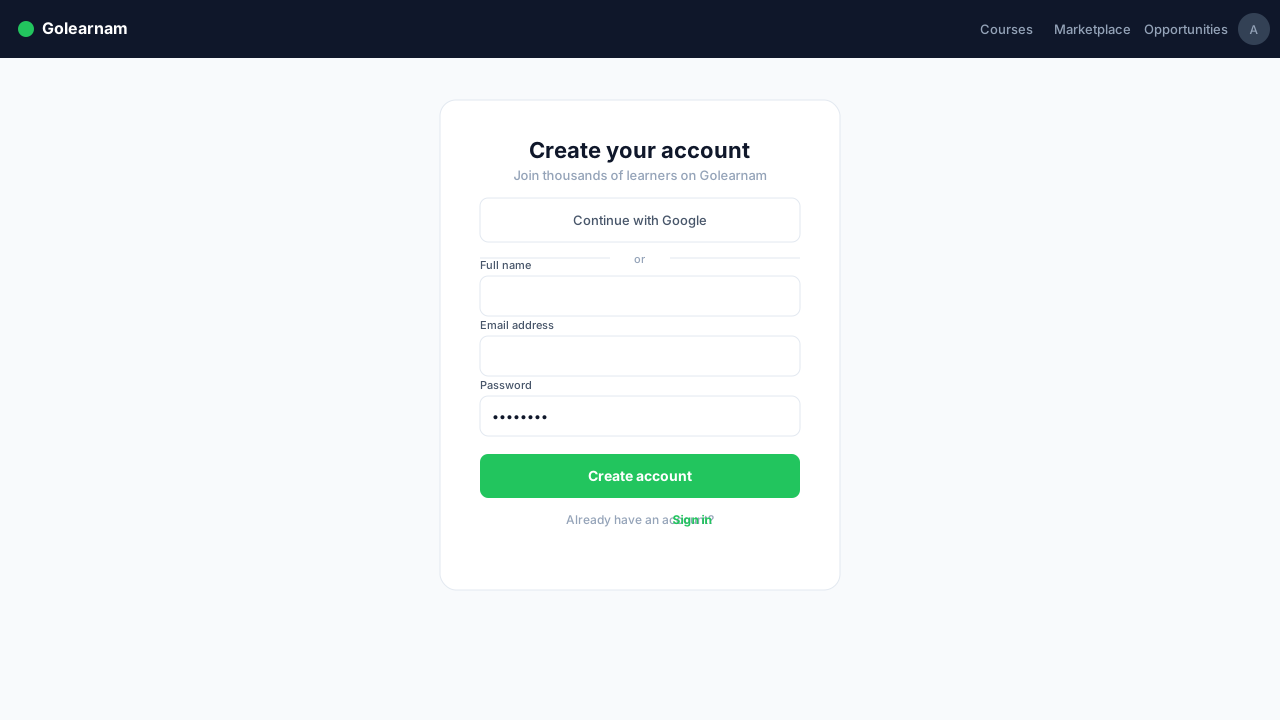
Visit the Golearnam homepage and click the 'Register' button in the top right corner. Fill in your name, email address, and create a secure password. You can also sign up using your Google or GitHub account for faster registration.
Tip
Use a valid email address, as you'll need it to verify your account and receive important course updates.
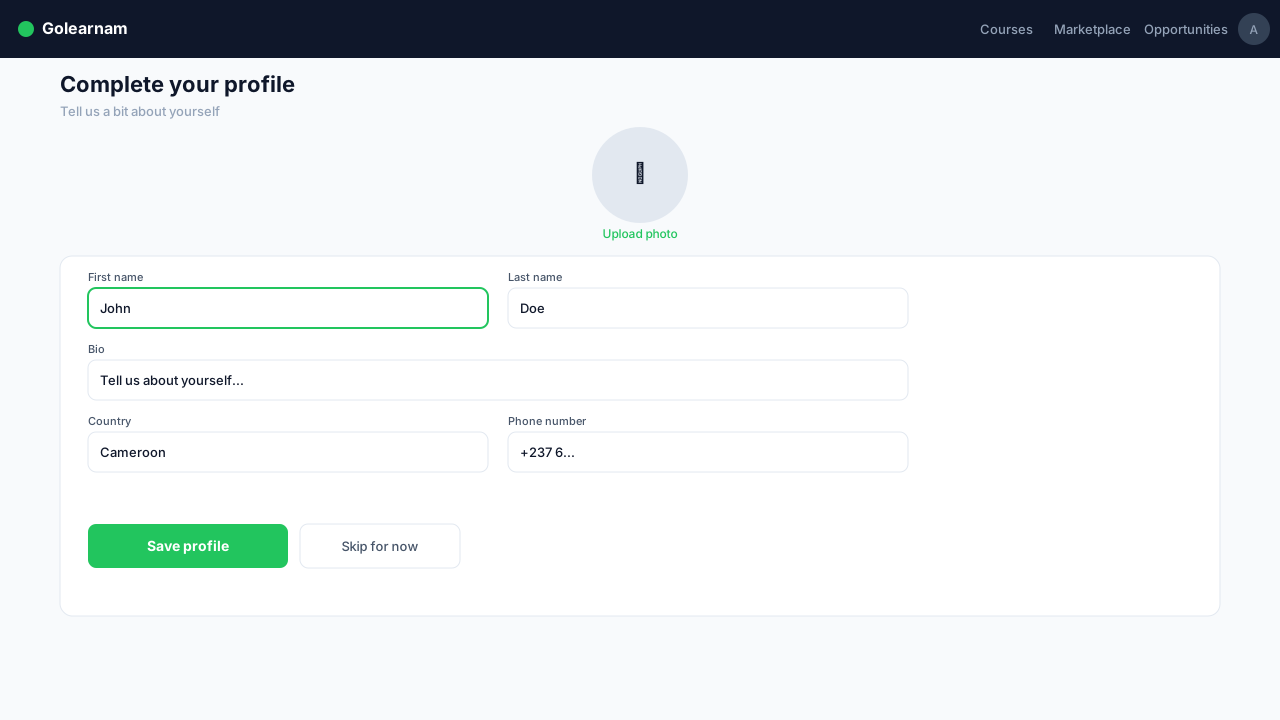
After registering, head to your dashboard and complete your profile. Add a profile picture, your bio, learning interests, and preferred language. A complete profile helps us personalize course recommendations for you.
Tip
Your profile is visible to tutors and other students. A complete profile builds trust in the community.
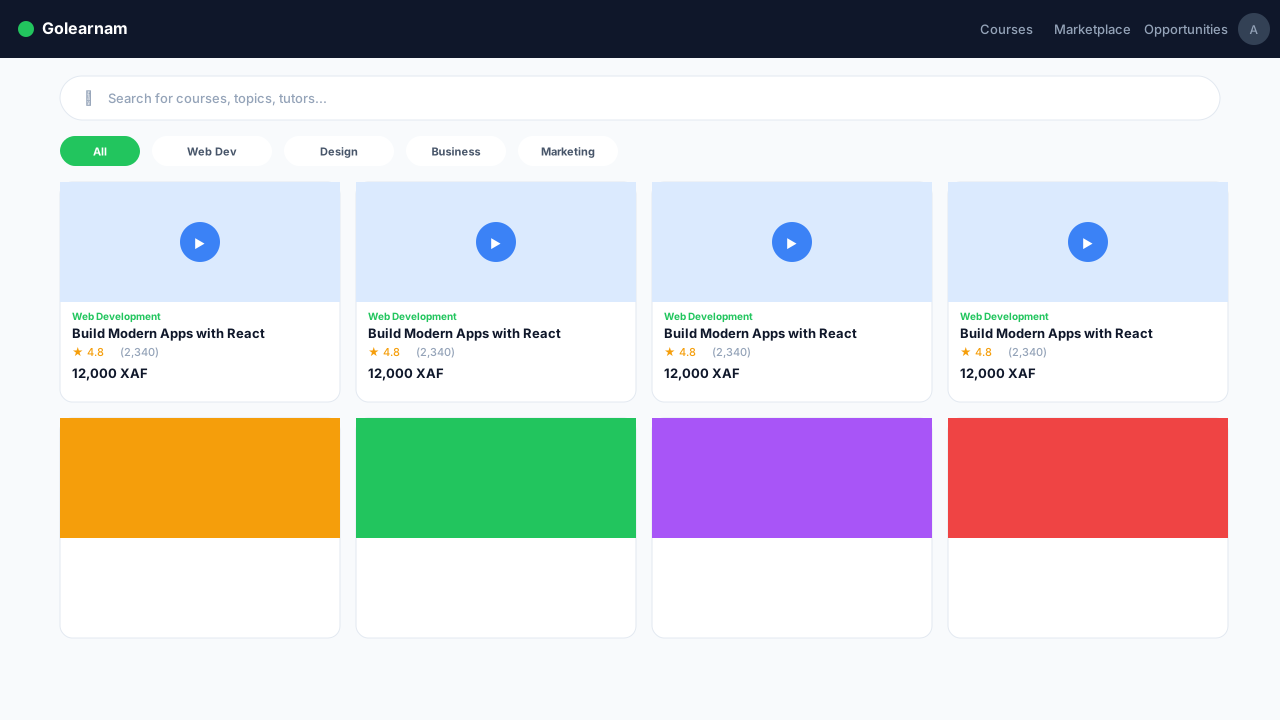
Navigate to the Courses page to explore our full catalog. Use the search bar to find specific topics, filter by category (Web Development, Digital Marketing, UI/UX, etc.), or sort by popularity and rating. Each course card shows the title, instructor, price, and rating.
Tip
Bookmark courses you're interested in so you can easily find them later from your dashboard.
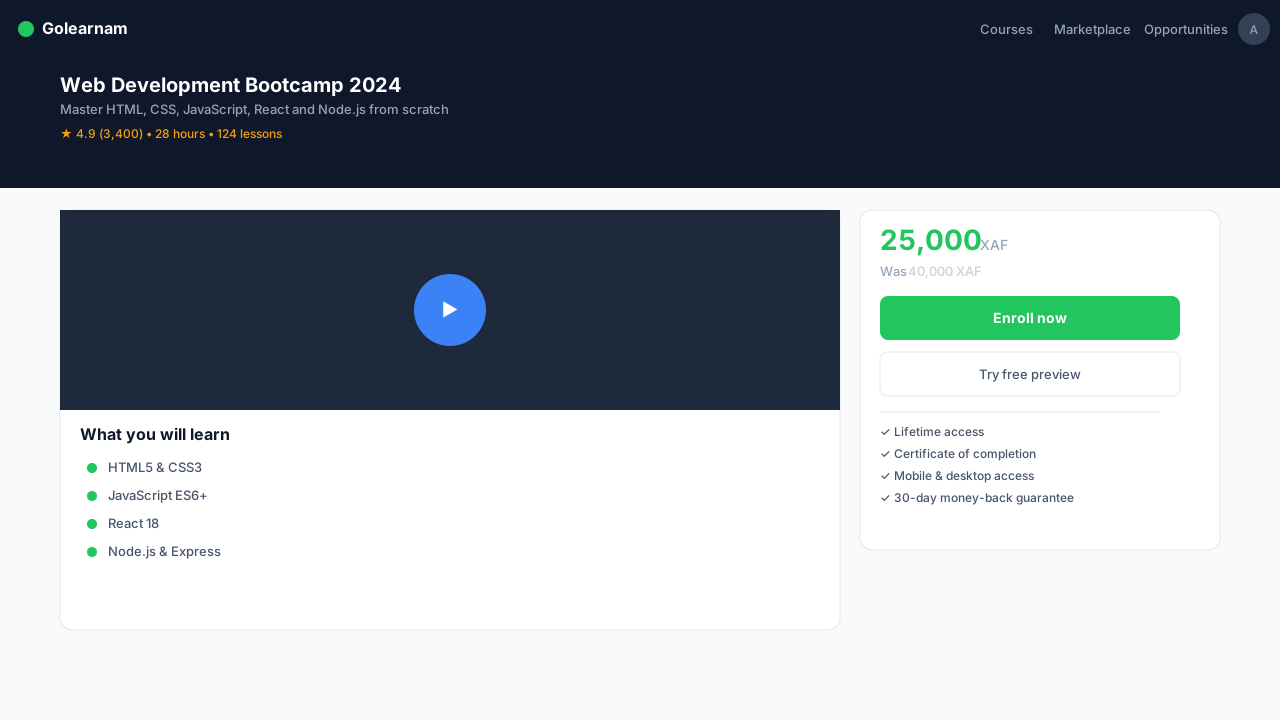
Found a course you like? Click on it to view the full details, including the curriculum, instructor bio, reviews, and pricing. When you're ready, click 'Enroll Now' to proceed to checkout. You can pay in full or choose an installment plan if available.
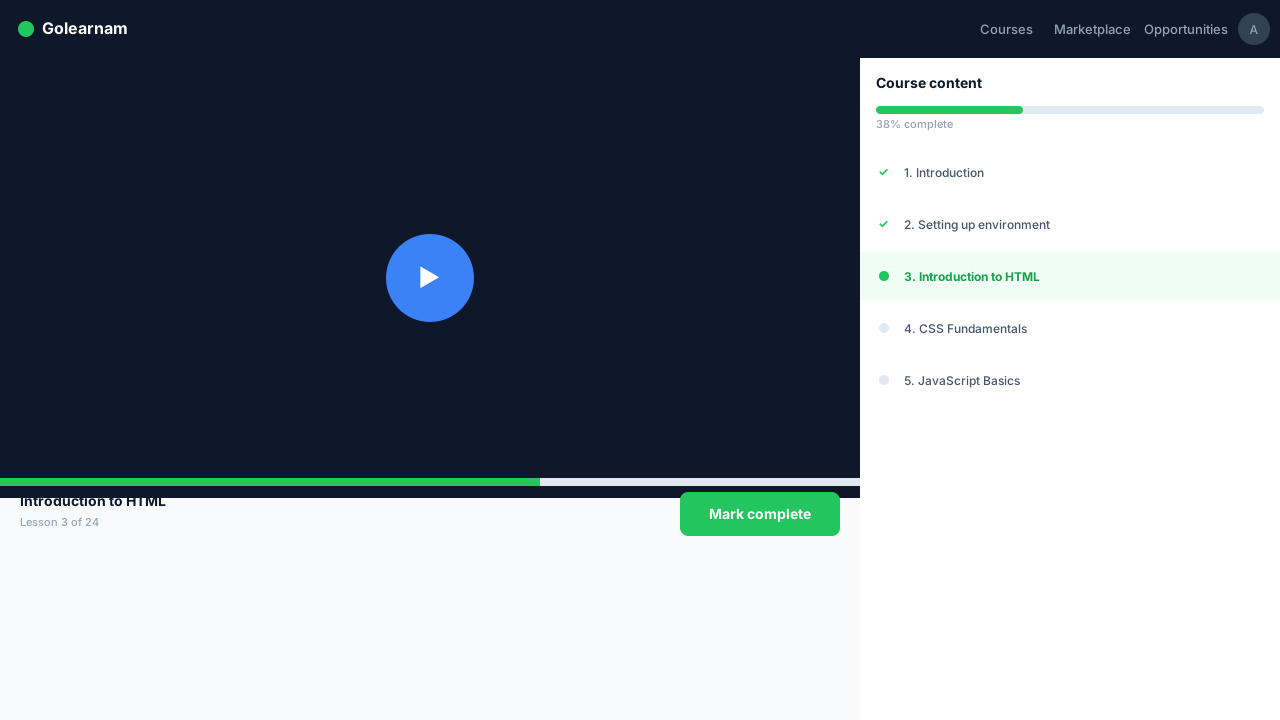
Once enrolled, the course will appear in your dashboard under 'My Courses'. Click into any course to access lessons, videos, PDFs, and quizzes. Lessons are organized into installments so you can learn at your own pace.
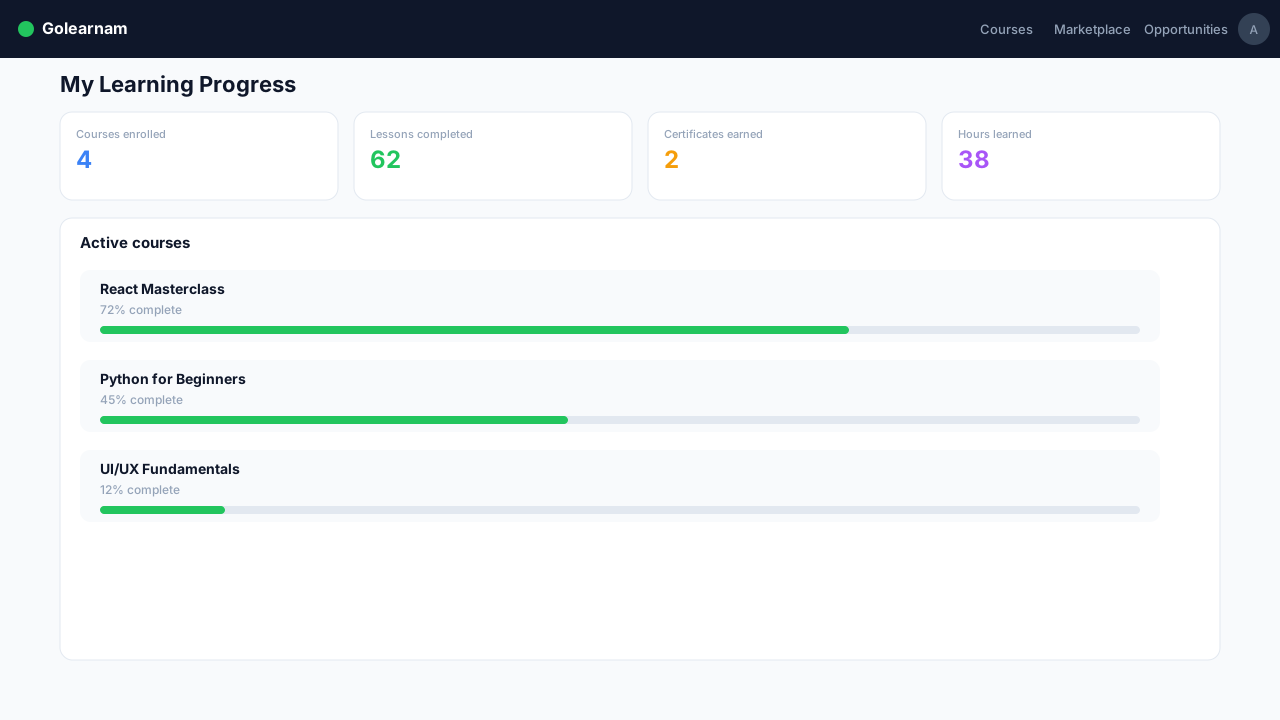
Your dashboard shows progress bars for each enrolled course. Complete lessons and quizzes to advance. Once you finish all installments, you'll receive a certificate of completion that you can download and share on your LinkedIn profile.
Tip
Set a daily learning goal to stay consistent. Even 30 minutes a day adds up quickly!